


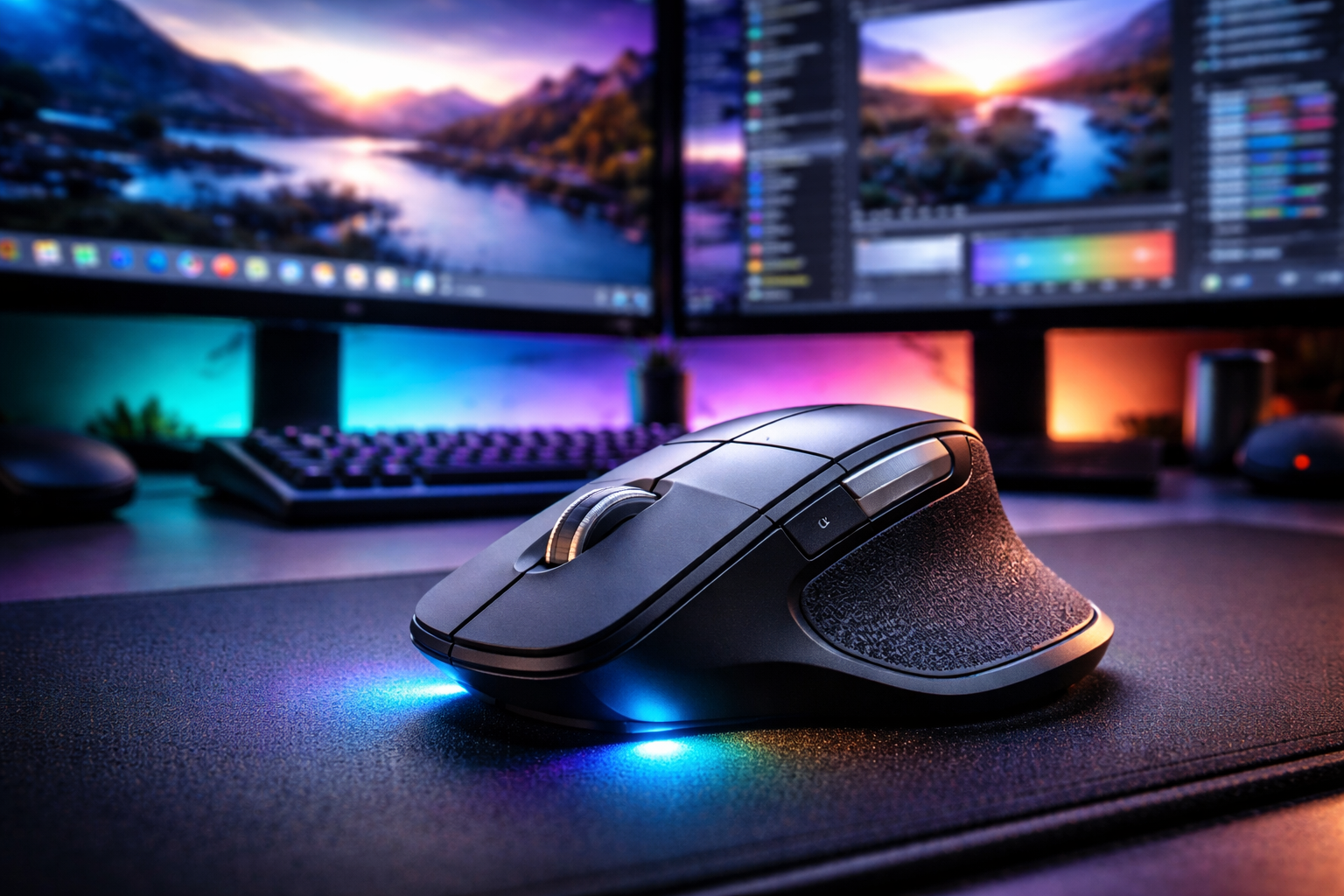
When people buying a mouse, the decision is usually based on brand, price, wireless connectivity, or design. Some buyers focus on ergonomics, while others simply pick whatever mouse looks good or fits their budget. While these factors are important, there is one technical specification that most buyers completely ignore, even though it directly affects everyday computer usage.
That specification is DPI.
DPI plays a major role in how smoothly your cursor moves, how much you need to move your hand, and how comfortable your workflow feels during long hours of work. As monitors become larger and higher in resolution, this small specification becomes even more important.
Understanding DPI can help you buying a mouse that actually matches your monitor setup rather than just choosing one based on marketing or brand popularity.
What DPI Actually Means while buying a mouse?
DPI stands for Dots Per Inch, and it measures how sensitive a mouse sensor is. In simple terms, DPI determines how far the cursor moves on the screen when you move the mouse physically by one inch on your desk.
A mouse with a lower DPI moves the cursor slowly across the screen, which means you need to move your hand a larger distance to reach different areas of the display. On the other hand, a mouse with higher DPI moves the cursor much farther with smaller hand movements.
In practical terms:
- Low DPI → cursor moves slowly
- High DPI → cursor moves farther on the screen
This does not necessarily mean that higher DPI is always better. Instead, the ideal DPI depends heavily on your monitor resolution and workspace size.
Why DPI Matters More Than Most People Think?
Many people assume that DPI is mainly important for gamers, but that is not true. DPI also affects productivity tasks like browsing, coding, editing documents, or working with spreadsheets. If the DPI is too low for your screen setup, the cursor will feel slow and you may need to repeatedly drag the mouse across the desk.
The reason for this is simple. The cursor has to travel across the entire width of your screen, and the larger the resolution, the farther it needs to move. As modern displays increase in resolution, the digital space your cursor travels across becomes much larger.
This is why choosing the right while buying a mouse DPI based on your monitor resolution is extremely important.
Why This Matters for 1080p vs 4K Monitors?
To understand why DPI matters, it helps to look at the difference between common monitor resolutions.
Normal Monitor (1080p)
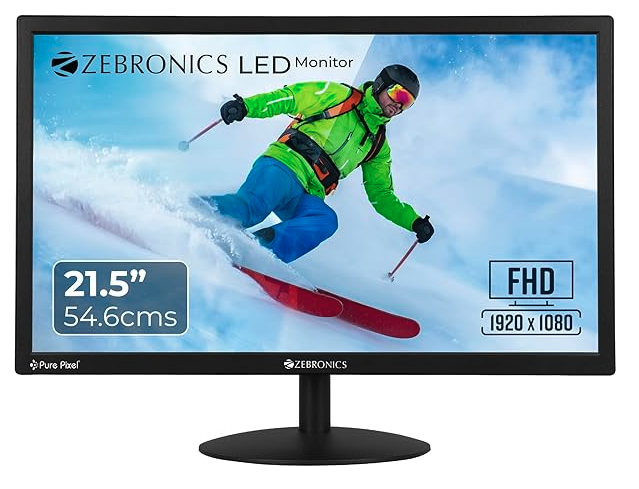
A typical Full HD monitor has a resolution of 1920 × 1080 pixels such as Zebronics 21-inch Full HD Monitor which cost just Rs. 3,600. For this type of monitor the cursor needs to travel across approximately 1920 pixels horizontally when moving from the left side of the screen to the right and mouse such as ZEBRONICS Blanc Slim Wireless Mouse with 800-1600 DPI is enough.
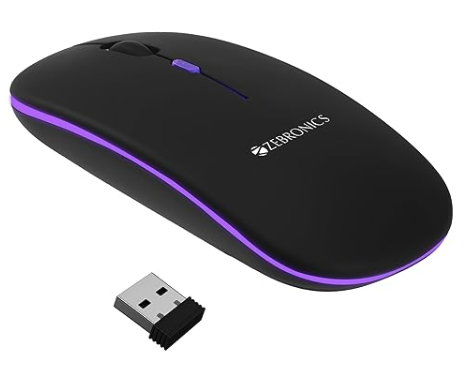
Because the screen width is relatively small, even moderate mouse sensitivity works perfectly fine. Most users working on 1080p displays find that a DPI range of 800 to 1600 feels comfortable and responsive.
This is why even basic office mice work well on laptops or standard Full HD monitors.
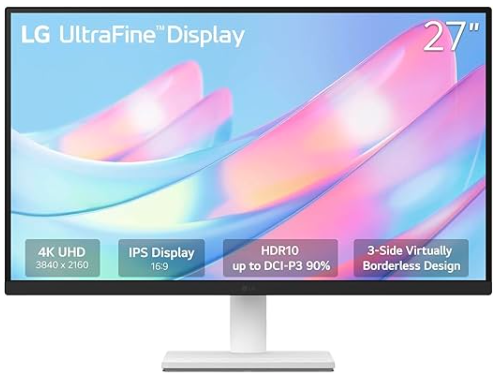
A 4K monitor has a resolution of 3840 × 2160 pixels such as LG 27US500-W, 27 Inch Ultrafine Monitor, which cost around ₹ 19k which is double the horizontal resolution of a Full HD display and four times the total number of pixels and think buying a mouse such as Logitech MX Master 3S which supports upto 8k DPI.
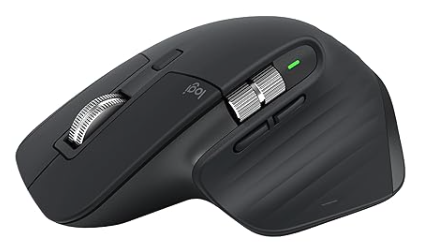
With this much screen space, the cursor must travel nearly 4000 pixels horizontally just to move from one side of the screen to the other. If the mouse DPI is too low, the cursor will feel slow and you may need to move the mouse multiple times to reach the edge of the screen.
Higher DPI settings allow the cursor to move farther with smaller wrist movements, making navigation across large screens much smoother.
How about the Multi-Monitor Situation when buying a mouse?
Things become even more interesting when multiple monitors are involved. Many professionals today use dual monitor setups for better multitasking and productivity.
For example, if you place two 4K monitors side by side, the total horizontal workspace becomes nearly 7680 pixels. Moving the cursor from the far left of the first monitor to the far right of the second requires a huge amount of cursor travel.
With a low DPI mouse, you will find yourself dragging the mouse repeatedly across the desk. With a higher DPI mouse, the same movement can be done with a small wrist motion, which feels much more natural during long work sessions.
Buying a Mouse Based on Your Monitor
A simple rule that many people overlook is that your mouse should match your monitor resolution. Choosing the right combination ensures smoother navigation and reduces unnecessary hand movement.
Here is a quick guideline for comfortable DPI ranges.
| Monitor Setup | Recommended DPI |
|---|---|
| Laptop / 1080p monitor | 800 – 1200 |
| 24-inch monitor | 1000 – 1600 |
| 27-inch monitor | 1600 – 2400 |
| 4K monitor | 2000 – 4000 |
| Dual monitors | 3000+ |
These ranges provide a comfortable balance between precision and speed.
Productivity Mice Designed for Larger Displays
Modern productivity mice are designed with higher precision sensors to handle these larger workspaces. A good example is the Logitech MX Master series, which is widely used by developers, designers, and professionals.
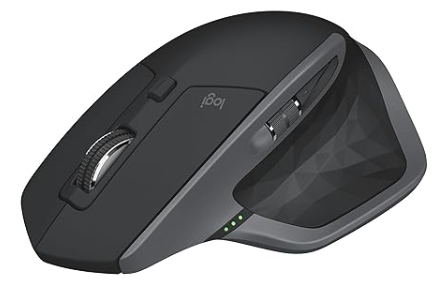
The Logitech MX Master 2S offers a sensor capable of 4000 DPI, which works comfortably on large monitors and multi-window workflows.

The newer Logitech MX Master 3S increases this capability with an 8000 DPI sensor, allowing smoother navigation across large screens and multi-monitor setups.
These mice are particularly useful for users who work with multiple applications or large displays.
Buying a mouse might seem like a simple decision, but ignoring DPI can significantly affect how comfortable your computer experience feels. As screens grow larger and resolutions increase, the digital distance your cursor must travel increases dramatically.
Buying a mouse with the right DPI ensures smoother cursor movement, less wrist strain, and a more efficient workflow. Instead of focusing only on brand or price, it is always worth considering how buying a mouse sensor matches the monitor you are using.
The next time you shop for a mouse, remember the one thing most people ignore.
Make sure while buying a mouse you choose matches the resolution of your monitor.
Also Read : Can a Large Mouse Like the Logitech MX Master 2S Cause Trigger Finger?
Buy From Amazon : Lenovo Legion {Smartchoice} R27qe Gen 2 | 27″ (68.58cm) QHD IPS 200Hz Gaming Monitor
